
L'installation d'un nouveau domaine ou sous-domaine dans votre compte d'hébergement n'a pas besoin d'être compliquée. Grâce à DirectAdmin et à l'hébergement fiable de Disoh, vous pouvez le mettre en service en quelques minutes. Vous trouverez ci-dessous une explication claire de chaque étape, avec des aides visuelles et des conseils utiles.
Étape 1 : Préparer votre domaine / sous-domaine #
Avant de vous plonger dans le panel, assurez-vous d'avoir.. :
- Vous avez enregistré votre nouveau domaine (ou vous avez opté pour un sous-domaine). Si vous ajoutez un tout nouveau domaine, vous pouvez l'enregistrer via Disoh à l'adresse suivante disoh.com/domaines.
- Mise à jour de vos serveurs de noms (si nécessaire) pour qu'ils pointent vers votre hébergeur, afin que les changements DNS se propagent une fois le domaine ajouté.
- Décider s'il s'agit d'une nouveau domaine complet (par exemple, exemple.com) ou un sous-domaine (par exemple, blog.example.com) sous un domaine existant dans DirectAdmin.
Étape 2 : Se connecter et naviguer vers la configuration du domaine #
Connectez-vous à votre panneau de contrôle DirectAdmin. Dans le tableau de bord principal, cherchez la section intitulée “Gestionnaire de comptes” et cliquez sur Configuration du domaine.
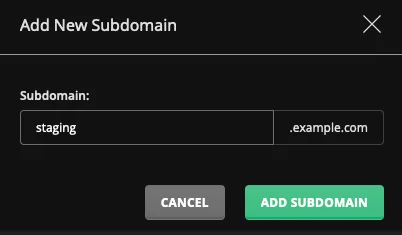
Une fois dans Configuration du domaine, Vous verrez une liste des domaines existants. Pour en ajouter un nouveau, cliquez sur le bouton Ajouter un nouveau domaine (ou un bouton similaire).
Étape 3 : Entrer les détails du domaine #
Dans le formulaire qui apparaît, entrez le nom du nouveau domaine (ou sous-domaine) que vous voulez ajouter. Par exemple : mynewsite.com ou blog.mynewsite.com. Vous pouvez également avoir des champs pour l'espace disque, la bande passante ou des fonctionnalités telles que la prise en charge de SSL.
- Choisissez ou vérifiez le répertoire dans lequel les fichiers du domaine seront stockés (par ex,
/domaines/mynewsite.com/public_html). - Pour les sous-domaines : choisissez le domaine parent et définissez le sous-dossier de manière appropriée (par ex,
/domaines/mynewsite.com/sous-domaines/blog).
Une fois que vous avez rempli les détails, cliquez sur Créer. Le panneau traitera la demande et affichera un message de réussite indiquant que le domaine/sous-domaine a été ajouté.
Étape 4 : Mise à jour des enregistrements DNS (si nécessaire) #
Après avoir ajouté le domaine ou le sous-domaine, vous devez vous assurer que le DNS est correctement configuré :
- Si le domaine est externe au serveur, faites pointer ses serveurs de noms ou son enregistrement A vers l'IP du serveur.
- Si vous avez ajouté un sous-domaine sous un domaine existant, vérifiez que le DNS inclut le bon enregistrement A ou CNAME pointant vers le même serveur.
- Chez Disoh, nous prenons en charge cette chaîne complète - enregistrement du domaine, DNS, hébergement - afin que tout s'intègre harmonieusement.

N'oubliez pas : Les changements de DNS prennent du temps à se propager complètement (généralement jusqu'à 24-48 heures). De nombreux visiteurs verront votre site plus tôt, mais la cohérence globale prend un peu plus de temps.
Étape 5 : Télécharger le contenu de votre site web ou configurer votre site #
Une fois le domaine/sous-domaine ajouté et le DNS correctement pointé, vous êtes prêt à vous connecter. Téléchargez les fichiers de votre site via le gestionnaire de fichiers de DirectAdmin ou FTP, ou installez un CMS (comme WordPress) à l'aide du programme d'installation en un clic Softaculous, s'il est disponible avec votre hébergement.
Si vous préférez que Disoh s'occupe de tout, notre Service de conception de sites web met votre site en ligne en seulement quatre jours - avec le domaine, l'hébergement et l'installation inclus.
Meilleures pratiques et conseils de dépannage #
- Si vous ne voyez pas le bouton “Ajouter un nouveau domaine” : vérifiez que votre compte autorise l'ajout de domaines (en particulier pour les plans revendeurs ou limités).
- Veillez à ne pas dépasser votre quota de domaines dans le cadre de votre plan d'hébergement.
- Videz le cache de votre navigateur ou essayez un autre réseau si les changements n'apparaissent pas.
- Utilisez des outils tels que “What's My DNS” pour vérifier la propagation au niveau mondial.
- Pour les sous-domaines : assurez-vous que le DNS du domaine parent est correct et que le sous-répertoire est correctement configuré.
Réflexions finales #
L'ajout d'un domaine ou d'un sous-domaine dans DirectAdmin est simple si vous suivez les étapes ci-dessus. Grâce à l'hébergement stable de Disoh et à l'assistance humaine, votre nouveau site sera opérationnel et prêt à se développer sans obstacles techniques inutiles.